
如何清理win系统电脑的垃圾

电脑用的时间稍长一些,就会发现速度没有刚开始那么流畅了,这时因为在我们使用的过程中有意无意的存了太多东西在电脑上,拖慢了电脑的运行速度,今天就跟大家介绍一下如何清理win系统电脑的垃圾的具体操作步骤。让我们的电脑速度提上去。
-
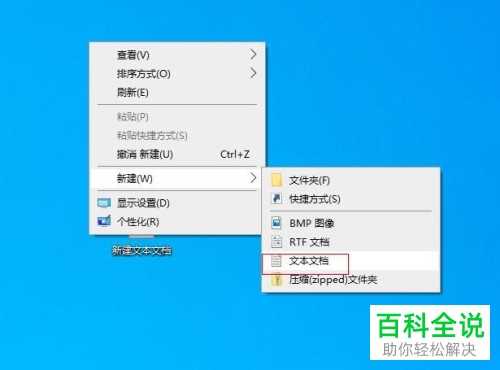
1. 首先打开电脑,然后右键点击左面空白区域,在菜单中选择新建---文本文档。
-
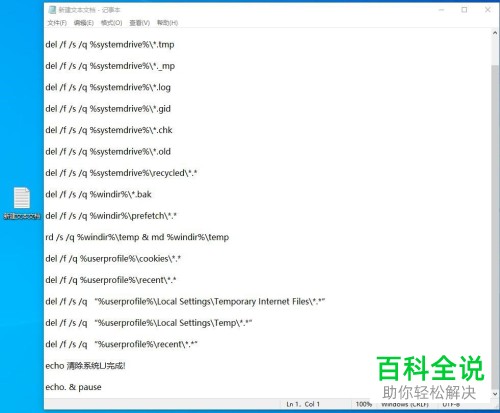
2. 将以下代码复制粘贴到文本文档:
@echo off
echo 正在清除系统垃圾文件,请稍等。。。。。。
del /f /s /q %systemdrive%\\*.tmp
del /f /s /q %systemdrive%\\*._mp
del /f /s /q %systemdrive%\\*.log
del /f /s /q %systemdrive%\\*.gid
del /f /s /q %systemdrive%\\*.chk
del /f /s /q %systemdrive%\\*.old
del /f /s /q %systemdrive%\\recycled\\*.*
del /f /s /q %windir%\\*.bak
del /f /s /q %windir%\\prefetch\\*.*
rd /s /q %windir%\\temp & md %windir%\\temp
del /f /q %userprofile%\\cookies\\*.*
del /f /q %userprofile%\\recent\\*.*
del /f /s /q “%userprofile%\\Local Settings\\Temporary Internet Files\\*.*”
del /f /s /q “%userprofile%\\Local Settings\\Temp\\*.*”
del /f /s /q “%userprofile%\\recent\\*.*”
echo 清除系统LJ完成!
echo. & pause
-
3. 然后把文本文档另存为后缀为.bat批处理可执行程序(文件名没有特别要求,存储位置也是自由选择即可)


